Updated Oct 2026
Messages taking up space on your Mac: how to find and clear the big attachments
Why Messages gets so big
Every attachment in every conversation stays on your Mac by default. Apple’s Storage pane describes the Messages category as “content from Messages conversations, including attachments” (Apple Support). Videos are the heavy part. On one example Mac we scanned in October 2026, Messages held 31.78 GB of attachments: 16.21 GB of videos across 4,091 files and 14.49 GB of photos.
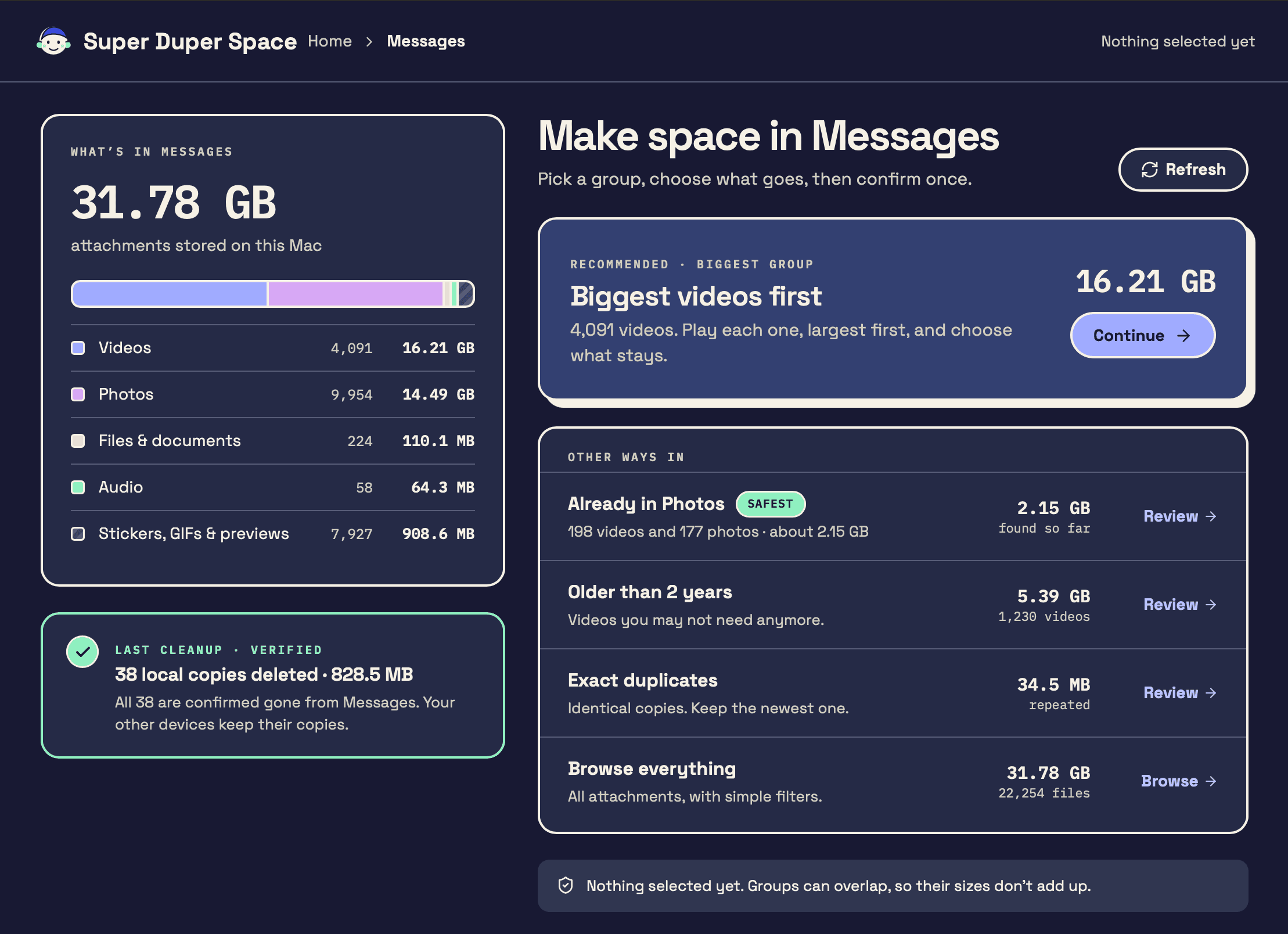
The colored rows are the kinds of files in that scan. The groups under them can overlap, so those group sizes don’t add up to 31.78 GB. People on forums report much larger folders, such as a 100 GB Attachments folder on MacRumors and 280 GB on r/MacOS.
Step 1: Check whether Messages in iCloud is on
Do this first. It decides what a delete does.
- Open Messages, then choose Messages > Settings.
- Click iMessage.
- Look at Enable Messages in iCloud.
If it is checked, Apple says deleting a message or conversation on your Mac “deletes it from all your devices where Messages in iCloud is on” (Apple Support). That includes attachments you remove in the Messages app or in the Storage pane (Michael Tsai).
If you want to clear space on the Mac and keep everything on your iPhone, uncheck it and choose Disable This Device. That turns off Messages in iCloud on this Mac only. Your other devices keep syncing (Apple, quoted in Apple Community). See Delete on Mac without deleting on iPhone below.
Step 2: See how much space Messages uses
- Choose Apple menu > System Settings > General > Storage.
- Wait for the bar to finish calculating.
- Click the info button (i) next to Messages.
You get a list of attachments you can sort by size. Select items and click Delete. This is Apple’s built-in way to delete from that list. With Messages in iCloud on, it deletes everywhere.
To check the folder size directly, open Terminal and run:
du -sh ~/Library/Messages/AttachmentsTerminal needs Full Disk Access to read this folder (System Settings > Privacy & Security > Full Disk Access). If you see “Operation not permitted,” that’s why.
Step 3: Delete big attachments inside a conversation
- Open a conversation in Messages.
- Click the Info button, then scroll to Photos.
- Hold Command to select several, Control-click, then choose Delete.
This is Apple’s documented path for attachments on Mac (Apple Support). Deleted items go to Recently Deleted for up to 30 days. After that, Apple says they are “removed from all your devices,” and after 40 days they are gone from iCloud (Apple Support).
Step 4: Stop it growing back with Keep messages
- Messages > Settings > General.
- Change Keep messages from Forever to 1 Year or 30 Days.
Apple warns that any option other than Forever removes whole conversations, including all attachments, after that time (Apple Support). With Messages in iCloud on, this setting can also be set from iCloud and applies across devices. Use it only if you’re fine losing old texts too.
About the ~/Library/Messages/Attachments folder
You can open it in Finder with Go > Go to Folder and pasting ~/Library/Messages/Attachments. The files sit in nested folders with random names, so finding a specific video by hand is slow.
Deleting files here in Finder is a gray area. One MacRumors user reports deleting the whole folder in Finder, keeping old messages on the iPhone, and seeing files download again later (MacRumors). Apple Community answers say any deletion on a Mac with Messages in iCloud on happens everywhere (Apple Community). Apple doesn’t document Finder deletion at all. If you go this route: back up first with Time Machine, quit Messages, and never delete chat.db or other files in ~/Library/Messages itself.
Delete on Mac without deleting on iPhone
| Your setup | You delete in the Messages app or Storage pane | What happens on iPhone |
|---|---|---|
| Messages in iCloud on, on both devices | Deleted on Mac | Deleted on iPhone too (Apple) |
| Messages in iCloud turned off on the Mac (Disable This Device) | Deleted on Mac | iPhone keeps its copy |
| Messages in iCloud off everywhere | Deleted on Mac | iPhone keeps its copy (each device stores its own) |
If you later turn Messages in iCloud back on for the Mac, it syncs again, and messages you deleted locally may download back.
Where Super Duper Space helps
Apple’s tools give you one long list sorted by size. Super Duper Space is a Mac app that scans your Messages attachments on your Mac and groups them so you can decide faster:
- Biggest videos first. You play each one, largest first, and choose what stays. That is usually where most of the space is.
- Already in Photos. The app marks this group Safest. It is photos and videos that match an item in the Photos library on this Mac: an exact copy, or a file that looks the same. The check uses Photos data already on this Mac and does not download originals from iCloud.
- Older than 2 years. Videos modified more than two years ago.
- Exact duplicates. Identical copies. The app suggests keeping the newest one.
- Browse everything. All attachments, with simple filters.
You review each file and choose what goes. Chosen files move to a holding area. The app calls this Ready to delete. Those files still use disk space, and you can put them back. When you delete them for good, the app checks Messages and reports how many of those files are gone, plus the change in measured Messages storage. Measured size is not a promise of free space, because macOS can share and compress storage.
The app tells you that deleting removes the copies on this Mac and that your other devices keep theirs. It also says Messages in iCloud may download a copy again later. We’re still testing this with Messages in iCloud turned on. The app does not edit chat.db, so it does not delete conversations or message text. A removed file can show up as a missing attachment in that conversation on this Mac.
Limits: it needs Full Disk Access to read the Messages folder. It doesn’t sign in to iCloud or change Messages settings, so read Step 1 first. It runs on your Mac, with no account. It’s in private beta for macOS 14 or later.
Related: System Data on Mac, FAQ, CleanMyMac alternative.
FAQ
Where are iMessages stored on a Mac?
Message text is in a database at ~/Library/Messages/chat.db. Photos, videos, and files are in ~/Library/Messages/Attachments. Both are in your user Library folder, which is hidden by default. Use Finder > Go > Go to Folder to open it.
Is it safe to delete the Messages Attachments folder?
Deleting attachments won’t break macOS. Those files may be your only copy if Messages in iCloud is off and you never saved them. Apple doesn’t document deleting the folder in Finder. Back up first, quit Messages, and prefer the Storage pane or the conversation Info view.
Does deleting messages on my Mac delete them from my iPhone?
Yes, if Messages in iCloud is on for both. Apple says a deletion on your Mac removes it from all devices where Messages in iCloud is on (Apple). Turn it off on the Mac only (Disable This Device) first if you want the iPhone to keep everything.
Why does Messages take up more space on my Mac than on my iPhone?
Your iPhone may use Optimize storage through iCloud, while the Mac keeps full local copies of attachments it has downloaded. The Mac also keeps everything forever unless Keep messages says otherwise.
Why did my attachments come back after I deleted them?
If Messages in iCloud is still on and the item still exists in iCloud, the Mac can download it again. This is reported on MacRumors.
How do I find the biggest iMessage videos on my Mac?
In System Settings > General > Storage > Messages, sort by size. Super Duper Space puts them in a Biggest videos first group.
Does Keep messages: 1 Year delete attachments too?
Yes. Apple says the whole conversation, including all attachments, is removed after the period you pick.